
Tool guide
Quick answers, steps, and examples — for readers and search.
At a glance
- Purpose
- convert an image file between JPG, PNG, and WebP.
- Input
- a JPG, PNG, or WebP file.
- Output
- the chosen format, with optional resizing and quality control.
- Best for
- quick format changes before publishing to the web or sharing on social media.
What it does
The image loads locally in your browser, gets re-encoded into the output format you choose — JPEG, PNG, or WebP — and becomes available to download as a new file. Processing never leaves your device, which keeps the original picture private throughout the conversion.
How to use
- 1Select or drag an image file into the tool.
- 2Choose the output format, then set quality or size if needed.
- 3Process the image and download the result.
Features
- Converts between JPG, PNG, and WebP for broad image compatibility.
- A quality slider controls file size for lossy formats.
- Optional width, height, or max-width resizing.
- No file ever leaves your device or touches a server.
Use cases
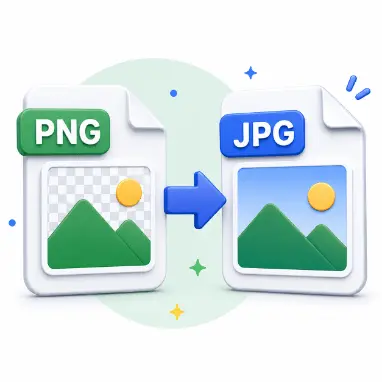
- Exporting a PNG logo as a JPG for an email signature.
- Converting WebP assets to PNG for older software that doesn't recognize the format.
- Preparing photos or graphics for a website or a slide deck.
Examples
- A PNG with transparency becomes a JPG with a white background instead of alpha.
- A large JPEG photo becomes a smaller WebP file at 80% quality.
Common mistakes
- JPG has no alpha channel, so transparency needs a background color instead.
- Setting quality too high on JPG or WebP output can make the file larger than the original.
FAQ
Are my images uploaded?
No. The entire conversion runs locally in your browser, and no file is sent anywhere.
Which formats are supported?
JPG, PNG, and WebP are supported as both input and output in this release.
Why is WebP missing?
A small number of browsers can't encode WebP from a canvas element; JPG or PNG will work as a fallback there.
Conclusion
Fast, private image conversion — choose a format, adjust the settings that matter, and download a file ready for the web.