
Tool guide
Quick answers, steps, and examples — for readers and search.
At a glance
- Purpose
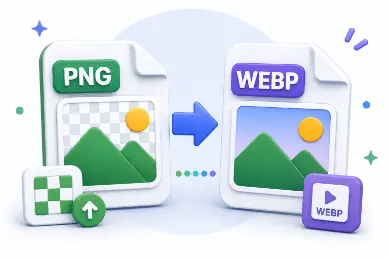
- convert a WebP image into JPG.
- Input
- a WebP file.
- Output
- a JPG file at the quality and background color you choose.
- Best for
- compatibility with software that doesn't accept the WebP format.
What it does
The WebP file is decoded locally, any transparent pixels are flattened onto the background color you pick, and the result is exported as JPEG — a format almost every app, printer, and platform already supports.
How to use
- 1Select a WebP file to convert.
- 2Set the quality level and a background color if the image has transparency.
- 3Process the file and download the JPG.
Features
- A quality slider controls the resulting JPG's file size.
- A background color option handles transparent WebP images correctly.
- Conversion happens instantly on the browser side, with nothing uploaded.
Use cases
- Sharing a WebP photo in an app or platform that only accepts JPG.
- Preparing an image for a print workflow that expects standard JPEG.
- Attaching a widely compatible file format to an email.
Examples
- A transparent WebP icon becomes a JPG on a white background.
- A WebP photo converts to a smaller JPG at 85% quality.
Common mistakes
- JPG can't store transparency, so picking the right background color matters before converting.
- Setting quality too low can introduce visible compression artifacts, especially on photos with fine detail.
FAQ
Is WebP uploaded?
No. The conversion happens locally in your browser without sending the file anywhere.
Can I keep transparency?
Not in JPG, since the format has no alpha channel. Use the Image Converter tool with PNG output instead to keep transparency intact.
Conclusion
A WebP file becomes a widely compatible JPG in seconds — private, fast, and ready for apps that don't yet support the newer format.