
Tool guide
Quick answers, steps, and examples — for readers and search.
At a glance
- Purpose
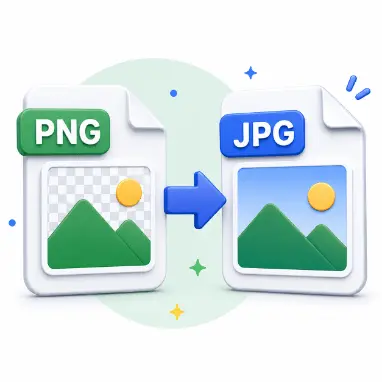
- convert a PNG image into WebP.
- Input
- a PNG file.
- Output
- a WebP file at your chosen quality.
- Best for
- web performance and smaller image assets.
What it does
Your PNG is encoded as WebP directly in the browser through canvas export, with a quality setting that controls the balance between file size and visual detail for the lossy WebP output.
How to use
- 1Select a PNG file.
- 2Adjust the quality slider.
- 3Process the file and download the WebP.
Features
- Quality control tailored to lossy WebP output.
- WebP files are often noticeably smaller than the source PNG.
- No server upload — the encode happens in the browser.
Use cases
- Optimizing UI icons and graphics for a website.
- Replacing heavy PNG images with lighter WebP versions.
- Converting a batch of PNG files one at a time for a redesign.
Examples
- A flat-color PNG icon converts to WebP at 85% quality.
- A large PNG hero image becomes a WebP for faster page loads.
Common mistakes
- WebP output depends on the browser's own canvas encoding support.
- Setting quality too low can introduce visible banding on smooth gradients.
FAQ
Why is WebP unavailable?
Some browsers can't encode WebP from a canvas element. Recent versions of Chrome, Edge, and Firefox all support it.
Is transparency kept?
Yes, WebP can preserve an alpha channel when encoded from canvas in browsers that support it.
Conclusion
A lighter WebP file for the same PNG image — practical whenever page speed matters and your browser supports the encoding.