What this tool does
The image is scaled on a canvas to the width and height you specify — or to a percentage or maximum width — and then exported in the format you selected, without ever leaving your device.
Your image is processed locally in your browser and is not uploaded to AdawatMix.
Drag and drop your image here, or click to browse
Choose file
WebP output is not supported in this browser.
PNG is lossless — the quality slider does not apply. To reduce file size, set a max width or choose JPG/WebP output.
New size
Use the slider for quick scaling, or type exact pixels. When aspect ratio is locked, changing width or height updates the other dimension.
A photo straight from a phone camera is often far larger than any web page, social post, or thumbnail actually needs, and that mismatch slows pages down for no visual benefit. Set an exact width and height, a percentage, or a maximum width, and the image resizes to fit — all inside the browser. The image is scaled on a canvas to the width and height you specify — or to a percentage or maximum width — and then exported in the format you selected, without ever leaving your device. You can enlarge an image, but its quality won't exceed what the original source already contained. No. All resizing happens locally in your browser. Reduce image file size with a quality slider and before/after size comparison. Convert between JPG, PNG and WebP in your browser with quality and resize options. Convert WebP images to JPG with quality control and background color for transparency.What this tool does
How to use it
What you get
Typical uses
Examples
Worth knowing
Frequently asked
Can I upscale safely?
Are files uploaded?
Related tools
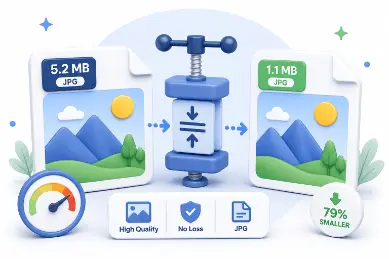
Compress Image
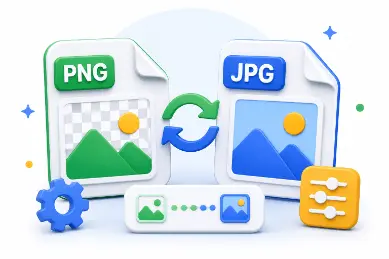
Image Converter
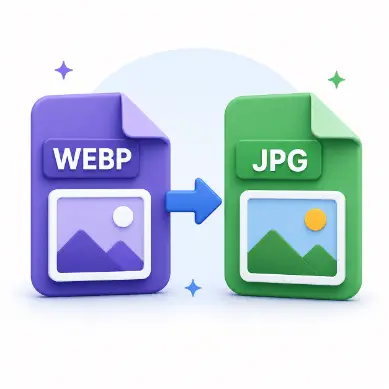
WebP to JPG
Exact pixel dimensions without installing desktop software — set the size, process, and download.